
Pixen
Capture, edit, and refine screenshots on your Mac.
Requires macOS 13.0 or later on Apple Silicon
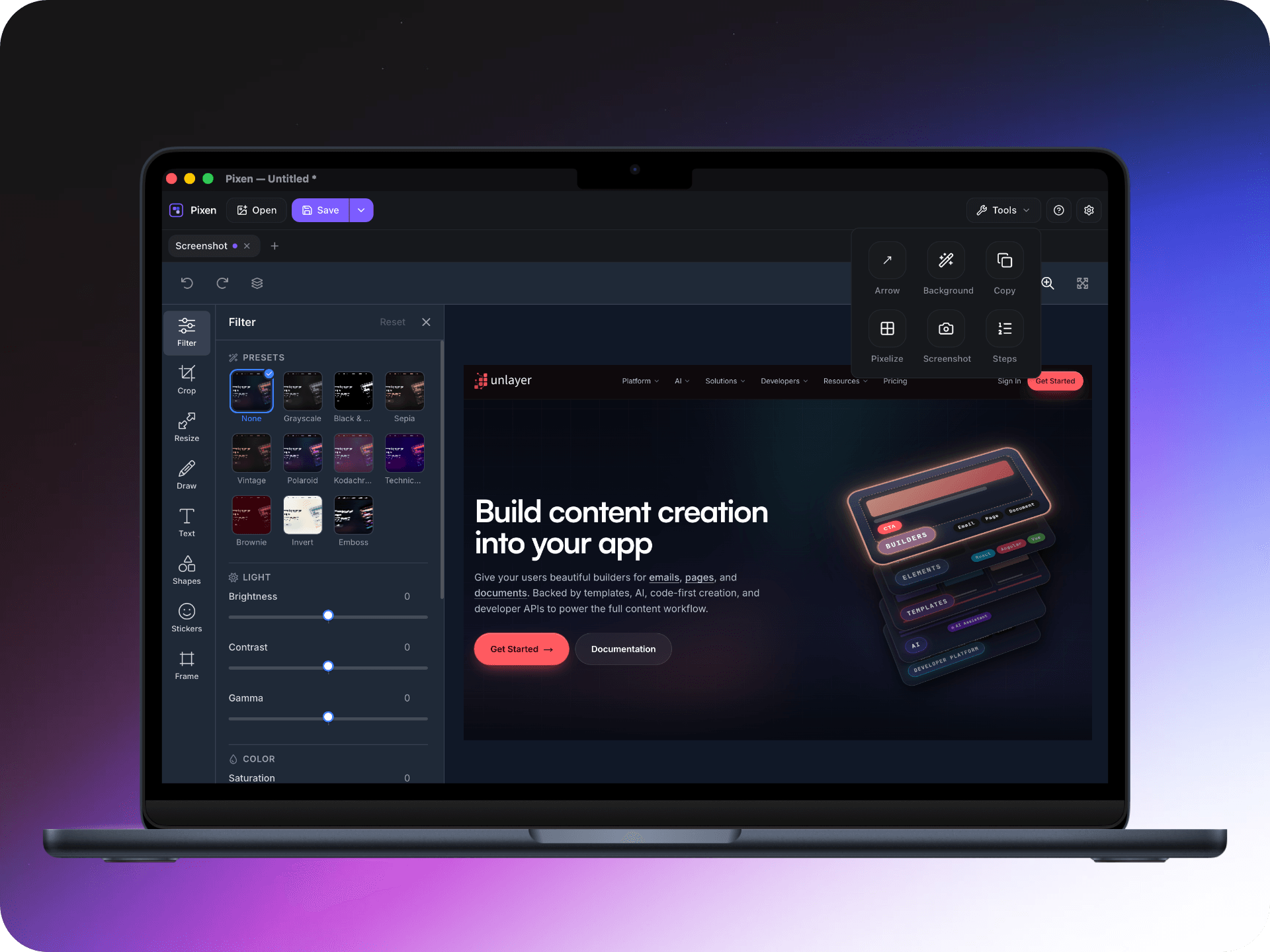
Pixen is a lightweight screenshot editor for macOS.
Capture your screen, make quick edits, annotate important details, hide private information, and export the result — all from one simple app.
TIP
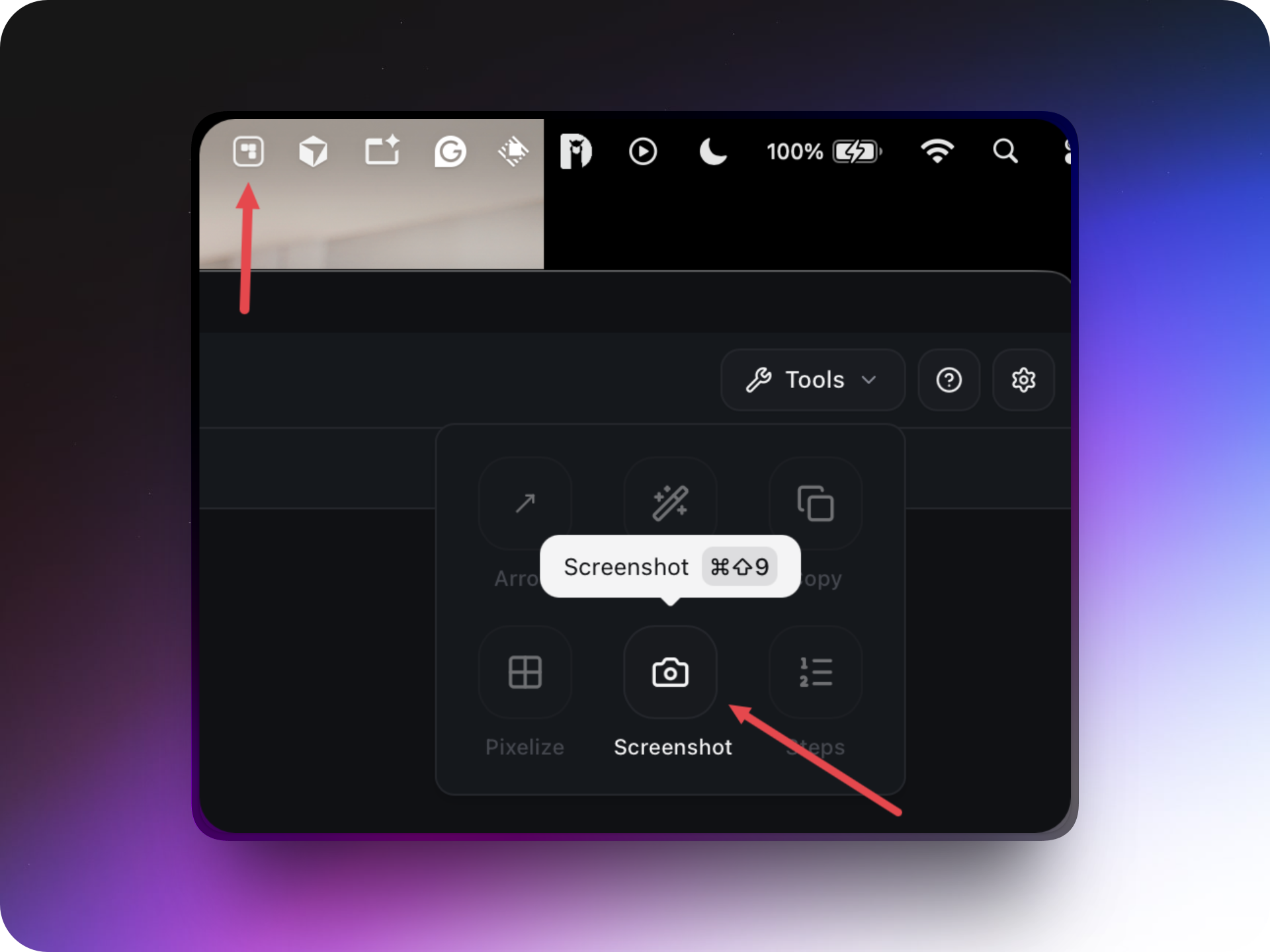
Press ⌘⇧9 from any app to capture a region straight into the editor. You don't need to switch to Pixen first.
Features
Capture Screenshots
Capture any region of your screen directly into Pixen, from the toolbar, the menu bar, or ⌘⇧9.
Edit Screenshots
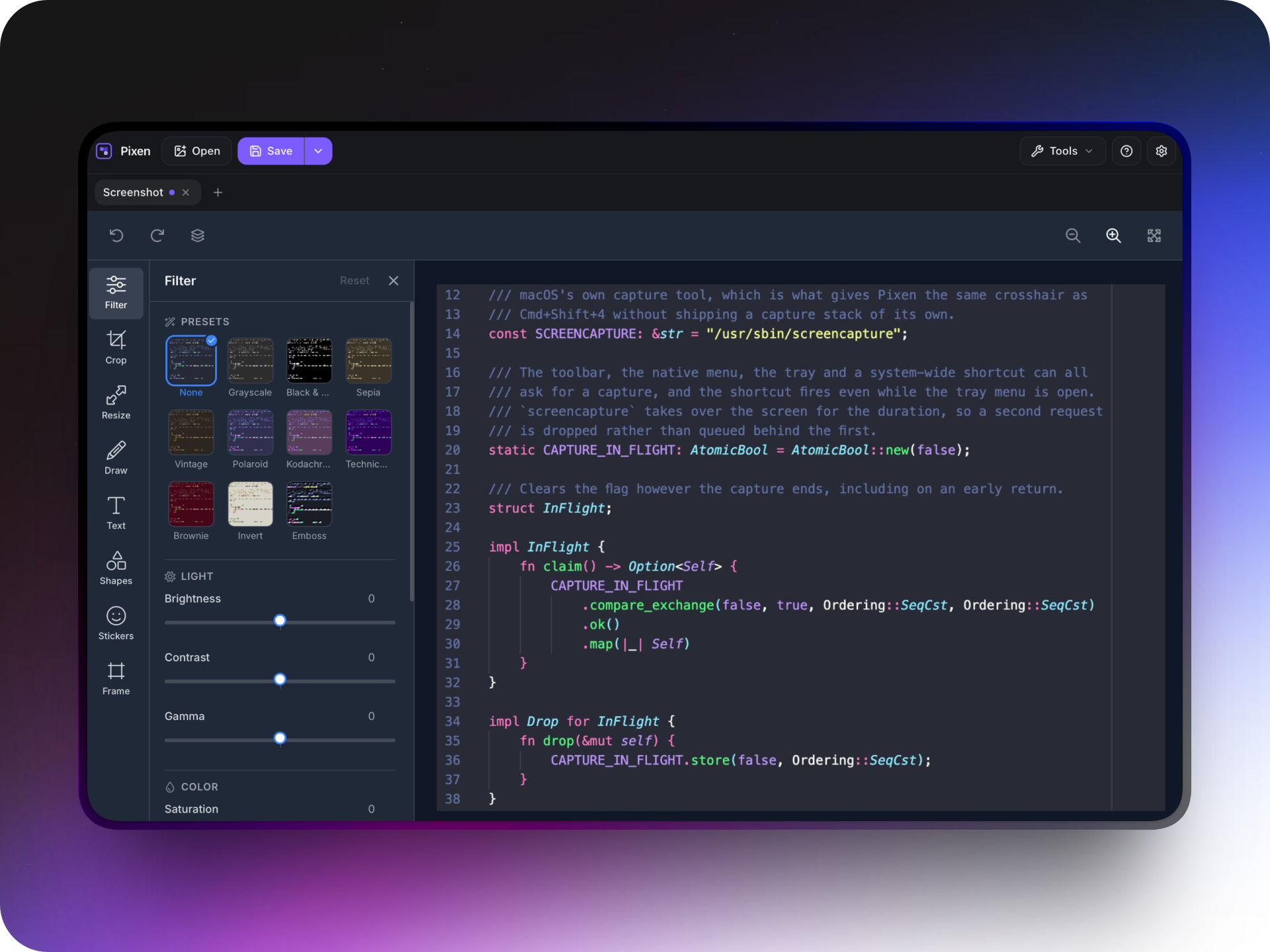
Edit your screenshots with a familiar image editor powered by Unlayer Image Editor.
Crop, resize, apply filters, draw, add text, shapes, stickers, and frames.
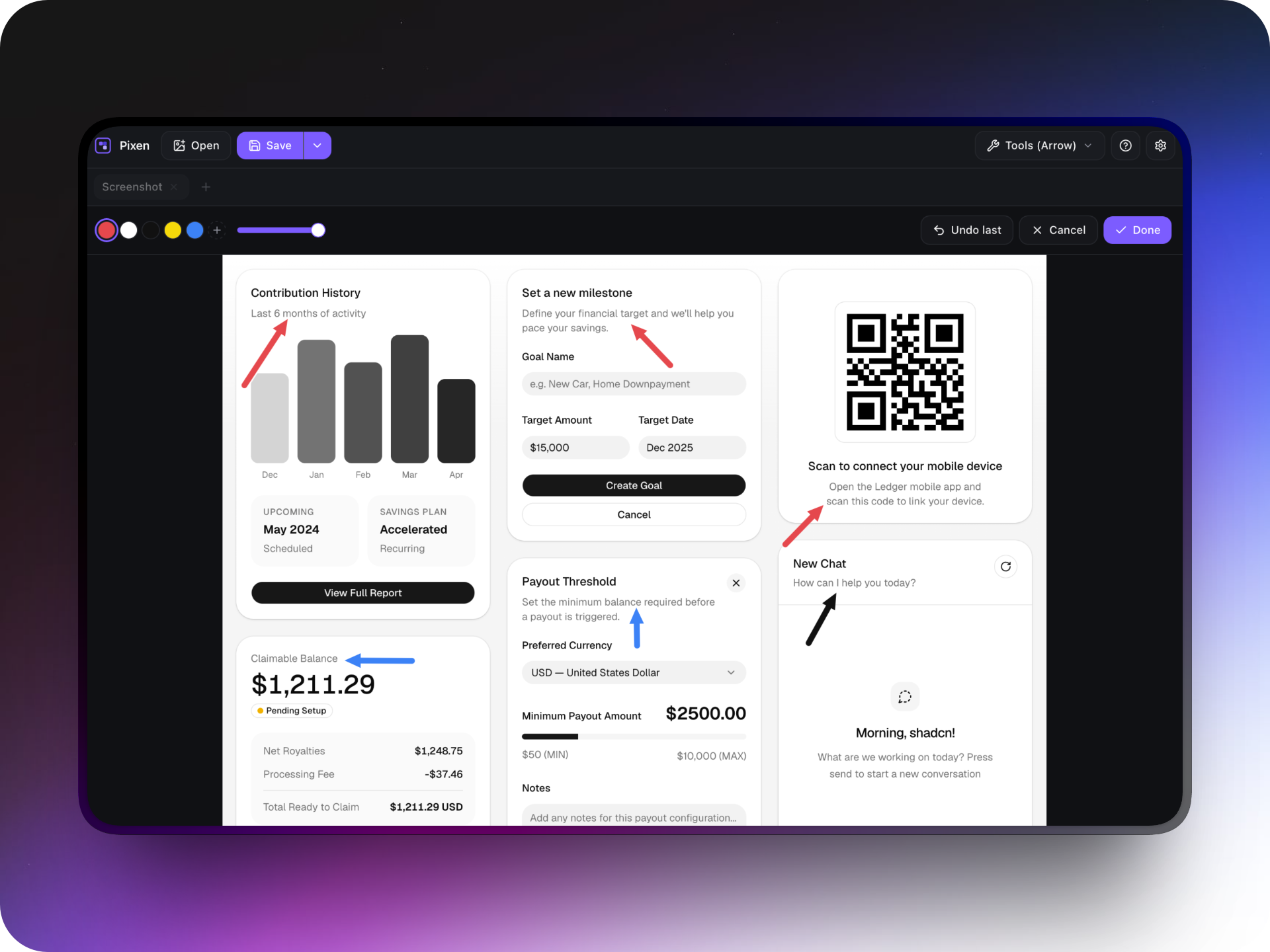
Annotate with Arrows
Point out exactly what matters. Draw arrows anywhere on the screenshot and add as many as you need.
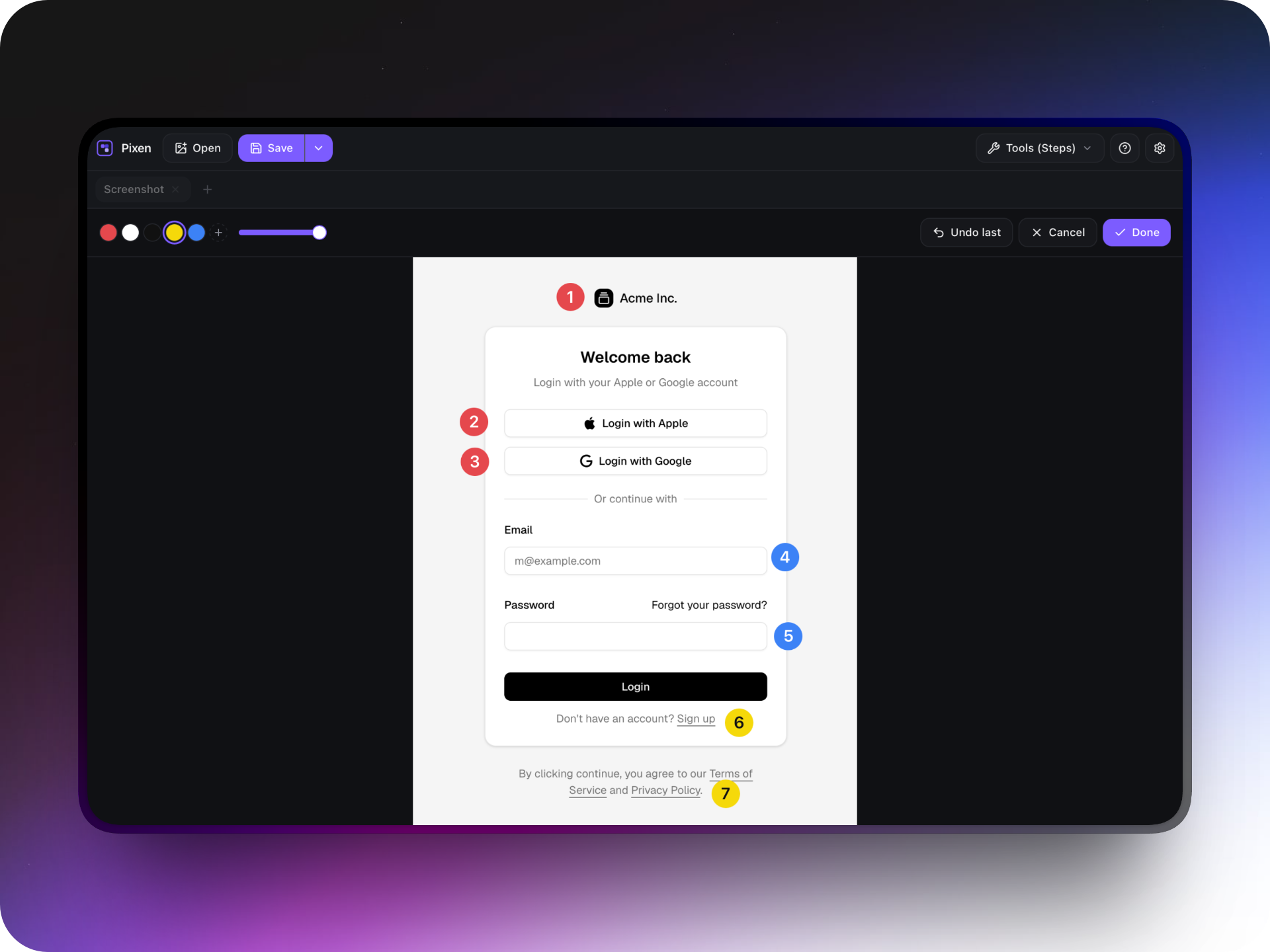
Add Numbered Steps
Create step-by-step guides directly on your screenshots.
Click each location, and Pixen automatically numbers the markers.
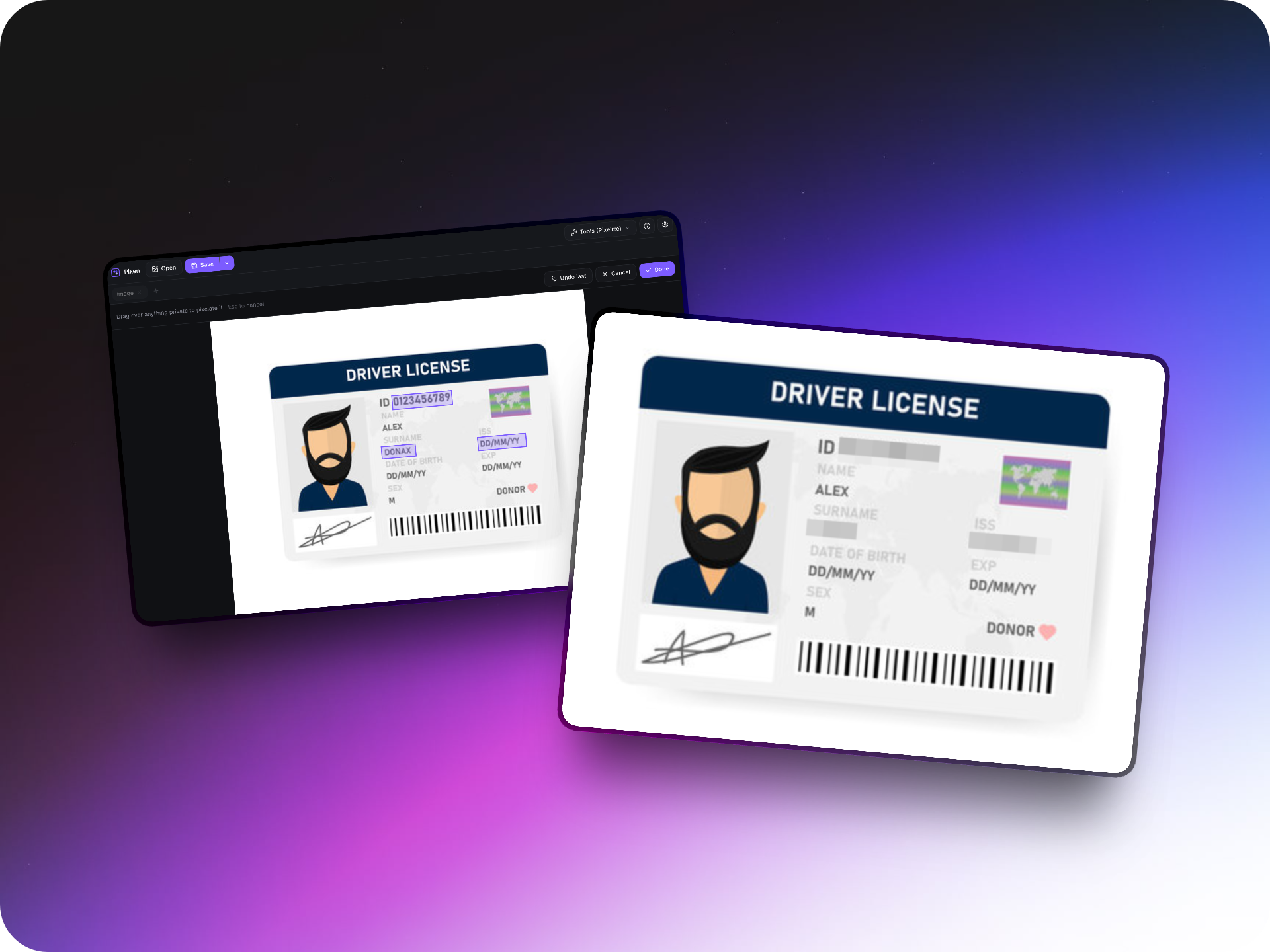
Hide Private Information
Protect sensitive information before sharing a screenshot.
Pixelate addresses, tokens, faces, and other private data by simply dragging a box over it.
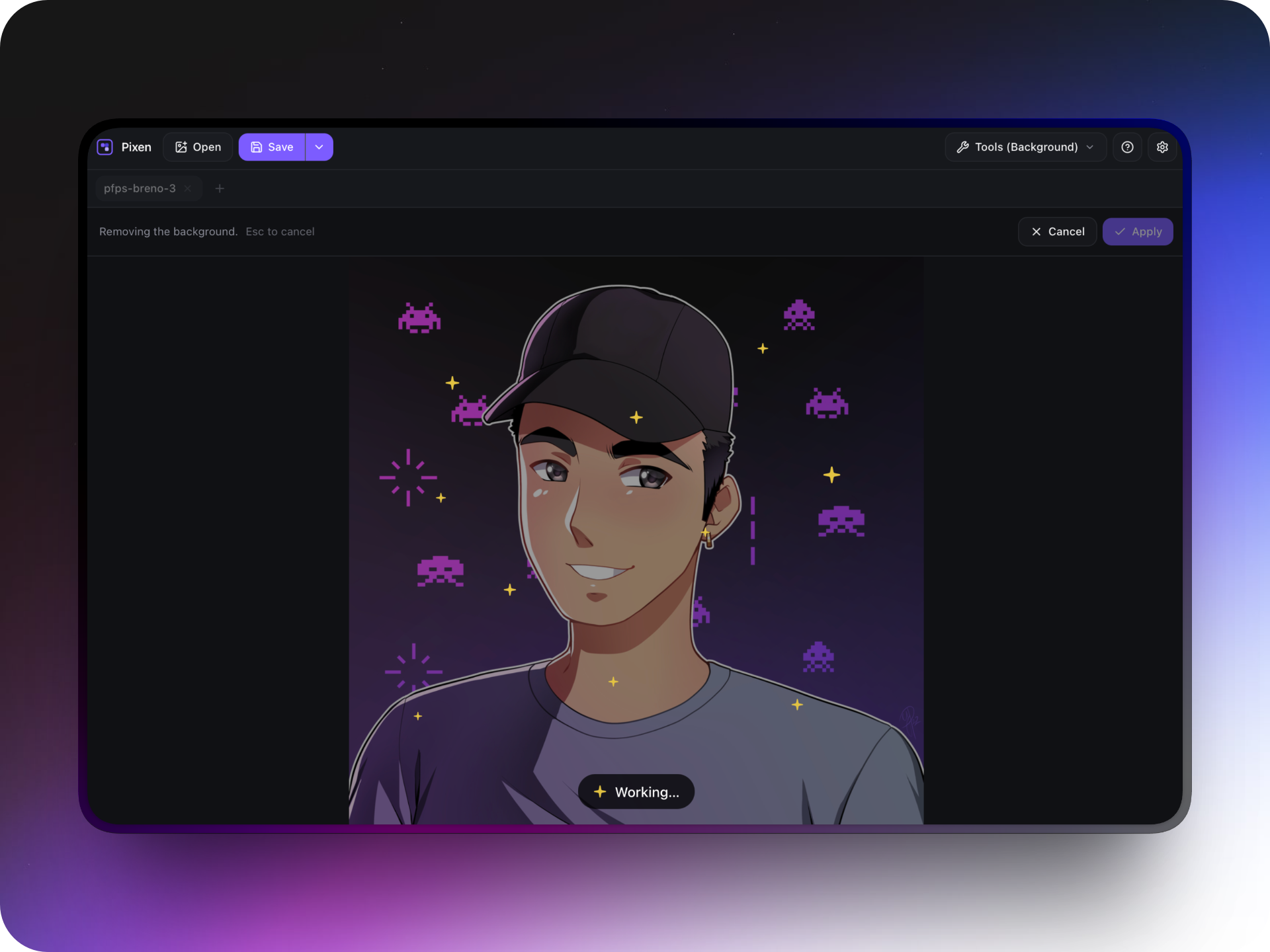
Remove Backgrounds
Remove the background with a local segmentation model.
The result is previewed before it is applied, and the image never leaves your Mac.
Menu Bar
Closing the window leaves Pixen in the menu bar. The Dock icon comes back when the window does.
Left-click the icon to capture. The window opens after a screenshot if it was closed. Right-click for Open Pixen, start at login, About, or quit. Quit is what removes the icon. Starting at login puts the menu bar up without opening the window.
Recent Images
Reopen the last ten images from File → Open Recent.
Tabs
Work with multiple images at the same time.
A clean tab can be replaced when opening an image, while a modified tab stays open and a new tab is created.
Light and Dark mode
Choose between light and dark mode from Settings.
Pixen's interface and image editor follow your preference, which is remembered between launches.
Export Anywhere
Save your work as PNG, JPEG, or WebP.
Use ⌘S to save and ⌘⇧S to save a new copy. Pixen remembers the destination after the first save.
Clipboard
Copy your edited screenshot directly to the system clipboard with ⌘⇧C.
Tips
Internet on first run
Pixen loads the editor engine from cdn.unlayer.com, so the first launch needs an internet connection. Saving, screenshots, and the clipboard stay on your Mac after that.
Menu bar
| Item | Action |
|---|---|
Open Pixen | Show the editor without capturing |
Take Screenshot | Capture into a tab (⌘⇧9) |
Start at Login | Toggle launch at login |
About Pixen | Open the About window |
Quit Pixen | Quit while guarding unsaved work |
A capture from the menu bar uses the same session as one from the window, so it replaces a clean tab and opens a new one next to a dirty one.
Keyboard shortcuts
| Shortcut | Action |
|---|---|
| ⌘S | Save |
| ⌘⇧S | Save As |
| ⌘O | Open an image |
| ⌘V | Open the image on the clipboard |
| ⌘⇧C | Copy the image to the clipboard |
| ⌘⇧A | Arrow |
| ⌘⇧P | Pixelize |
| ⌘⇧N | Numbered steps |
| ⌘⇧B | Remove background |
| ⌘⇧9 | Take a screenshot from any app |
| ⌘, | Open Settings |
| ⌘? | Open keyboard shortcuts |
| ⌘Q | Quit, guarding unsaved work |
| ⌘W | Close the About window |
| Escape | Close the About window |
⌘⇧9 is registered system-wide, so it can capture while another app is in front. Change it in Settings → Capture Screenshot. A custom shortcut must include ⌘, and Pixen rejects ones it already uses, including Save, Copy Image, the tool shortcuts, and Quit.